Get Your API Key
How to generate your bosta API key
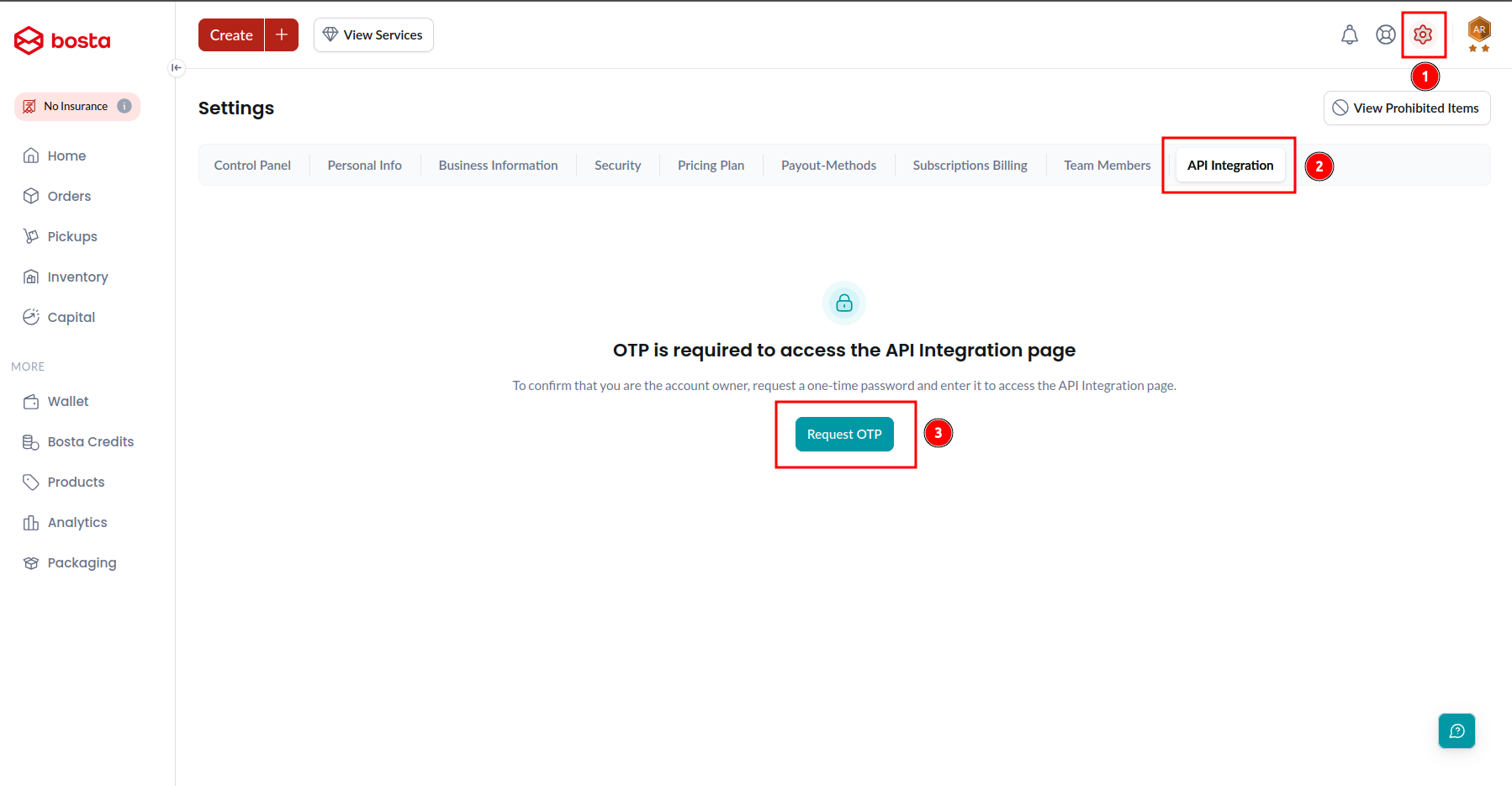
From the settings page choose the API Integration tab then Request OTP
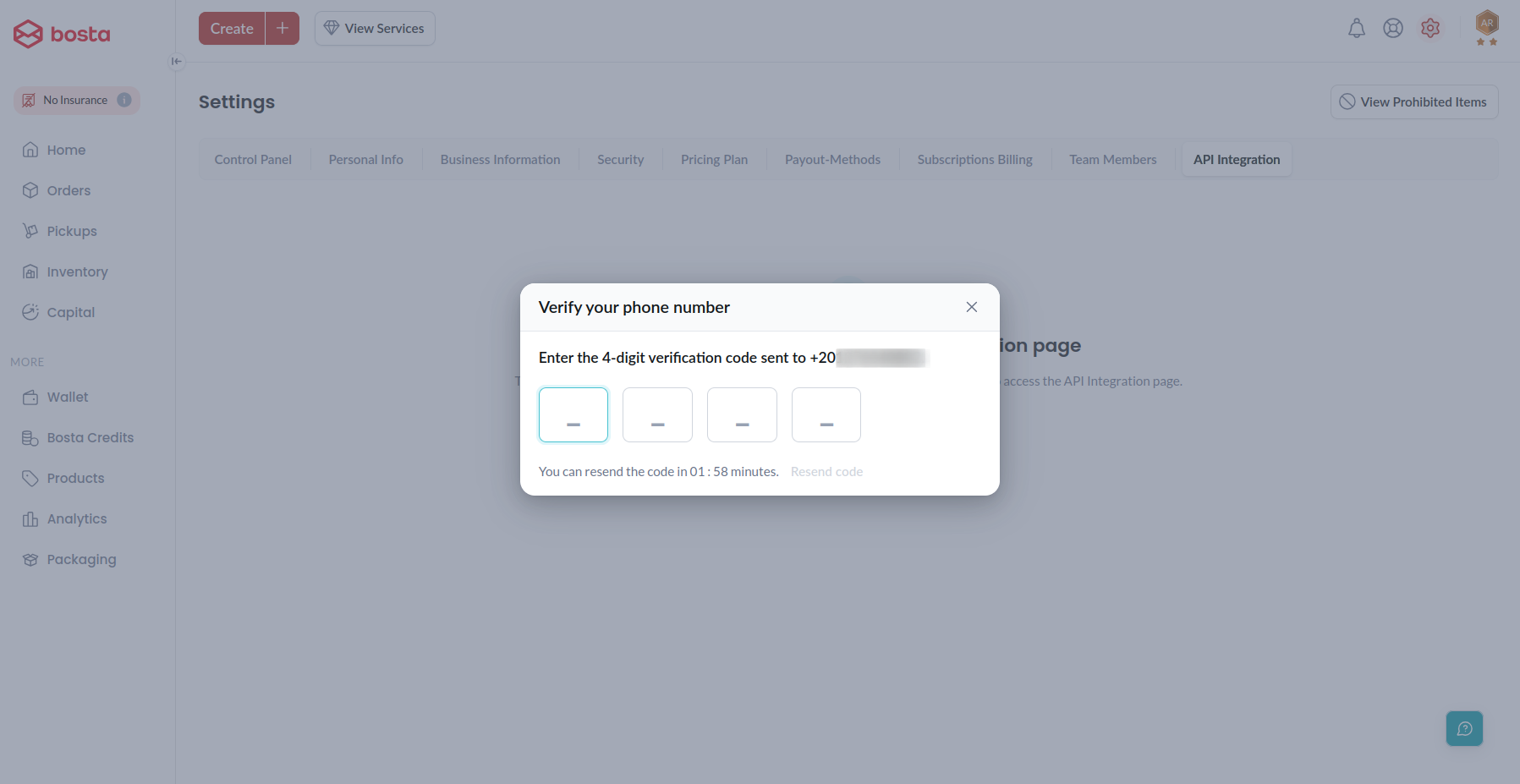
Enter the confirmation code (OTP) that you received on your phone to start the generation of the API key.
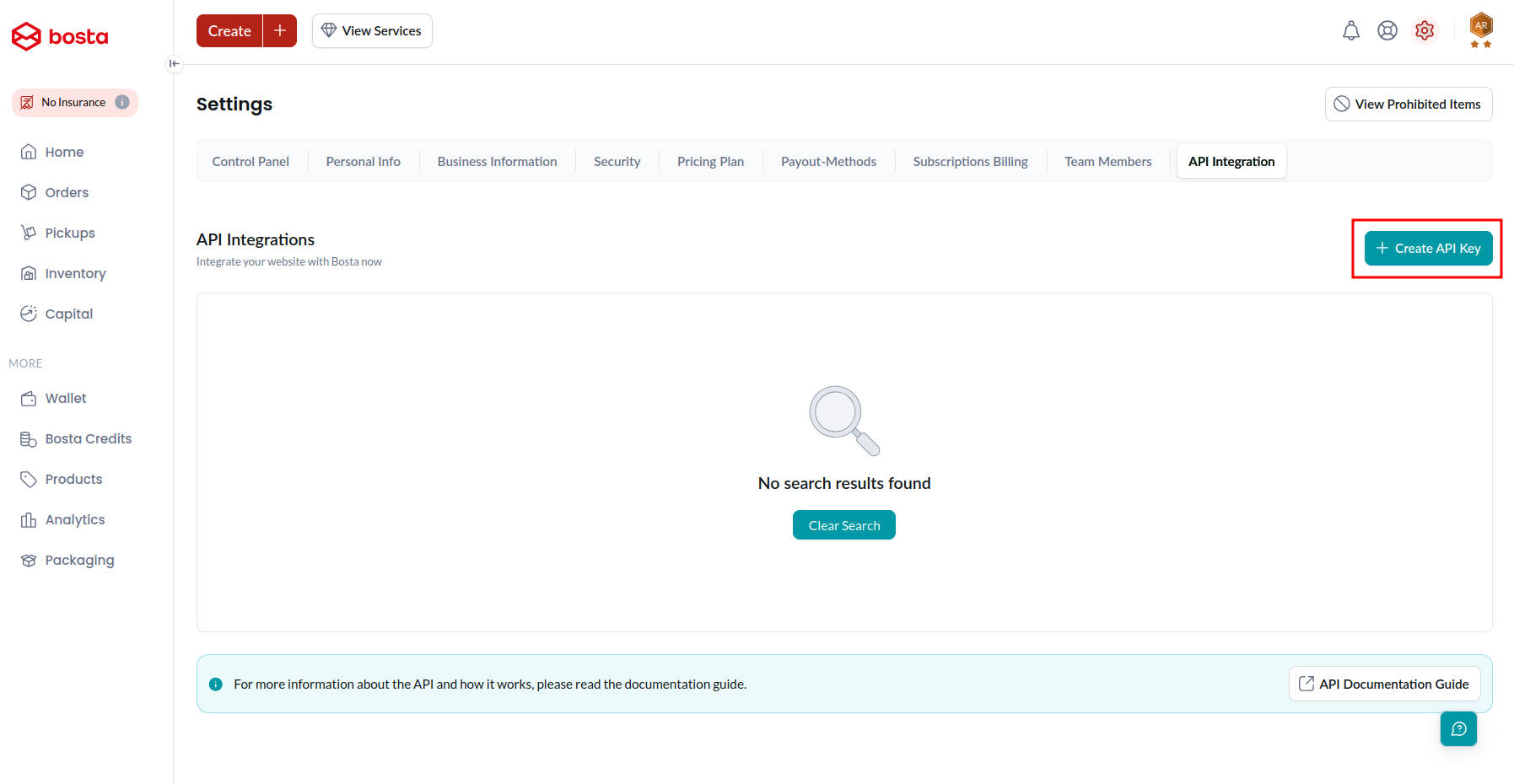
After entering the code you received the page will look like the following, click on Create API key
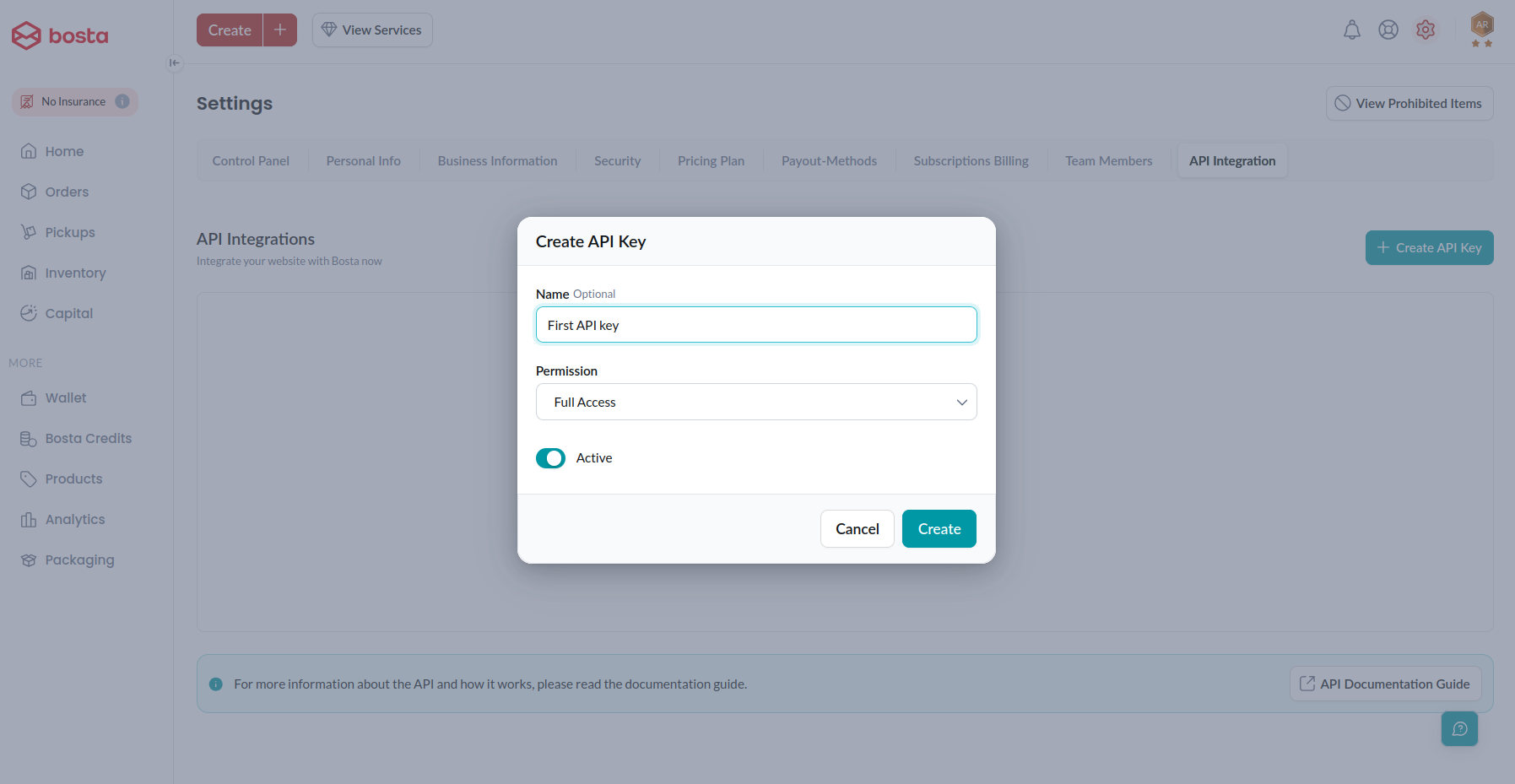
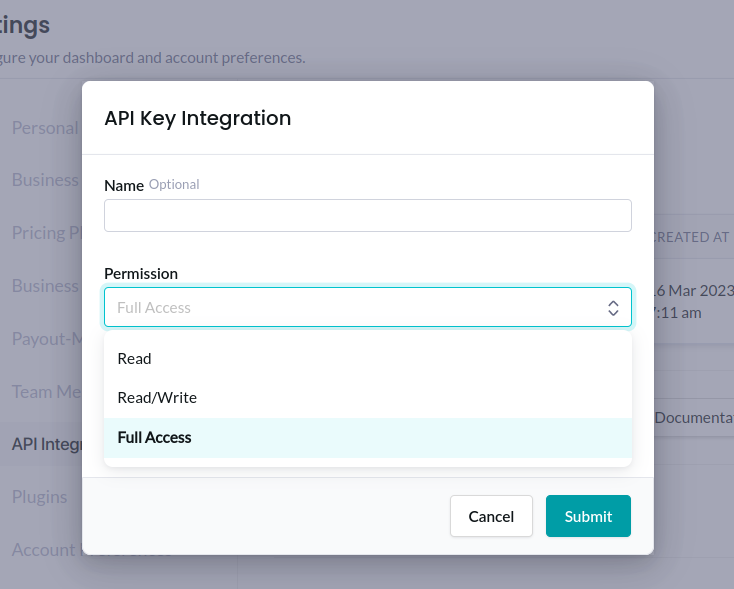
Set a name, specify the permission and click Create
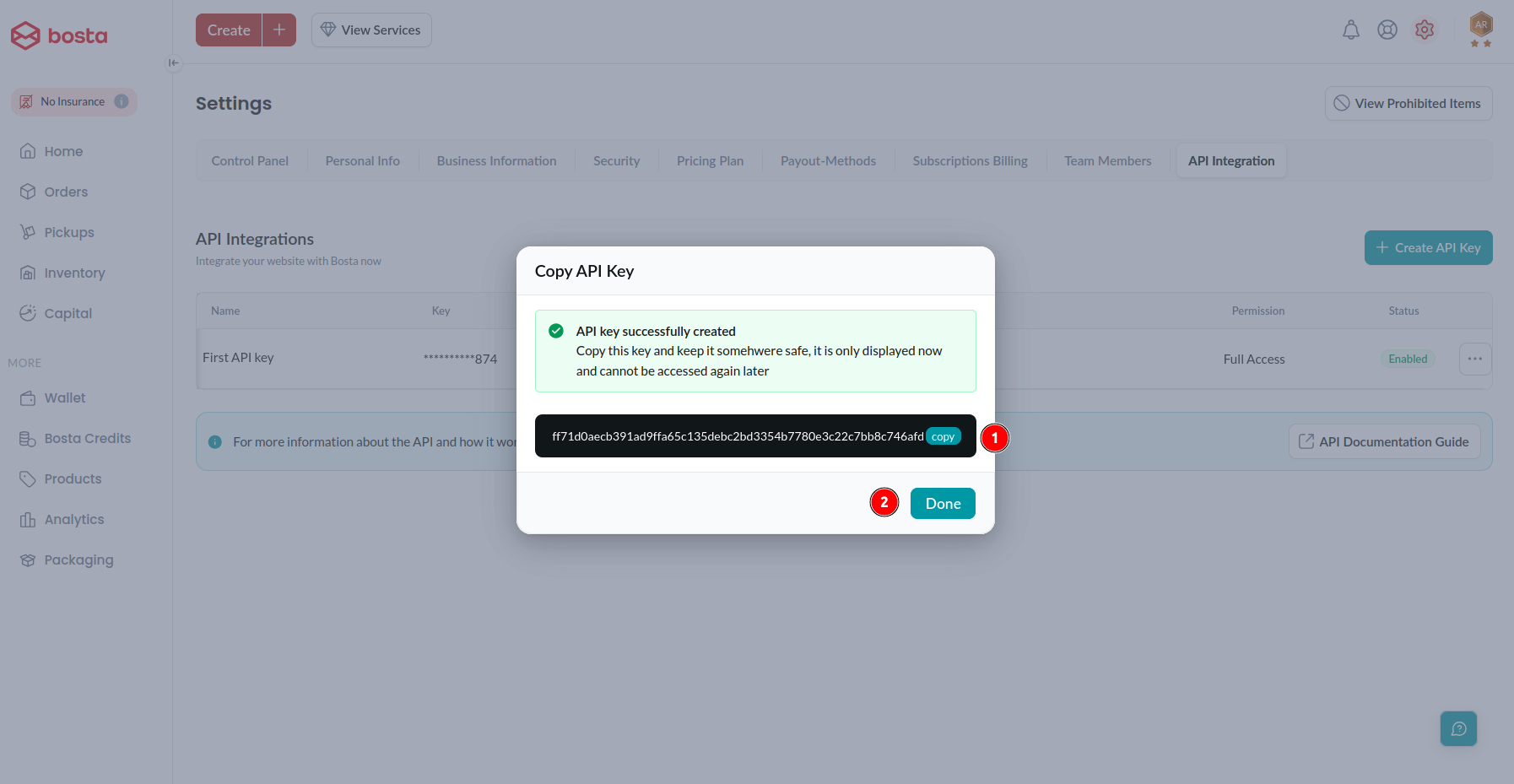
Make sure to copy the API Key before clicking done as you won't be able to access it again
How to use your bosta API key
Simply you need to add this API key in your headers as the following
curl --request <HTTP-METHOD> "http://app.bosta.co/api/v2/<endpoint>" \
  --header "Authorization: <YOUR_API_KEY>" \
  --header "Content-Type: application/json" \
  --data '{}'
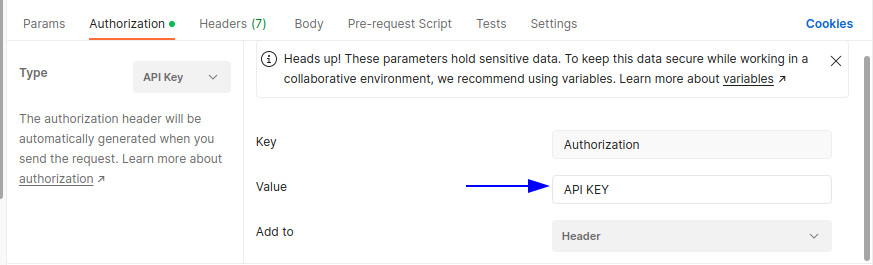
If you are using postman you can add it as in the following screenshot
Types of API keys
We provide three types of API keys each one has a scope. A Scope means what that Key can access or edit in your data.
1 Read Only Access
An API key of type read is able to only access endpoints with HTTP method of type GET
2 Read/Write Access
An API key of type Read/Write is able to access any endpoint EXCEPT the endpoints with HTTP method of type DELETE
3 Full Access
This type has the access to all actions you want (Create, Read, Update and Delete)
Create API key of Specific type
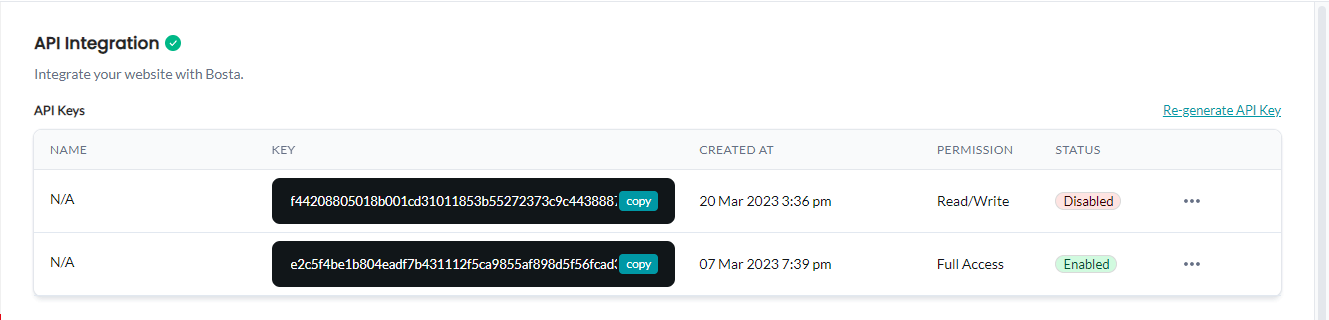
Note that you can Enable or Disable your API keys or even delete any of them.
Understanding API Key Scopes
When creating an API key, you’ll choose a scope. The scope determines what your key is allowed to do.
These scopes are aligned with the same access levels used across your business account.
Read Only Access (Viewer)
This scope is designed for view-only operations.
With Read access, your API key can:
- Retrieve data from the system
- Call
GETendpoints only
Typical use cases:
- Displaying deliveries in a dashboard
- Generating reports
Examples of allowed actions:
This is the safest option when no changes are required.
Read / Write Access (Editor)
This scope allows your API key to create and update data, but not perform sensitive or destructive actions.
With Read/Write access, your API key can:
- Retrieve data (
GET) - Create new resources (
POST) - Update existing data (
PUT/PATCH) - ❌ Cannot delete or perform critical actions
Typical use cases:
- Creating deliveries from your system
- Updating shipment details
Examples of allowed actions:
In essence, this scope extends Read access with write capabilities required for operational workflows.
This is the most common choice for integrations.
Full Access
This scope provides complete control over your business APIs.
With Full Access, your API key can:
- Perform all operations, including destructive ones
- Use all HTTP methods (
GET,POST,PUT,PATCH,DELETE)
Typical use cases:
- Internal tools and automation
- Administrative systems
- Advanced integrations requiring full control
Examples of allowed actions:
- Business terminate delivery
- Delete business pickup location
- Deletes a pickup by ID
- Deactivate Business Admin
⚠️ Use this scope carefully, as it allows irreversible actions.
This scope is intended for administrative use cases and full system control.
Choosing the Right Scope
Choosing the correct scope depends on what you’re trying to build:
- Use Read if you only need visibility into your data
- Use Read/Write if your system needs to create or update operations
- Use Full Access only when full administrative control is required
🔐 We recommend following the principle of least privilege — always select the lowest level of access that meets your needs.